Samsung Smart TVs have become one of the most popular ways to enjoy IPTV content at home. If you are looking for a simple and reliable IPTV player, IBO Player is one of the most widely used options available today.
In this guide, you will learn how to install IBO Player on Samsung TV, activate the application, upload your IPTV playlist, and solve common issues that may appear during setup.
For more IPTV guides and tutorials, visit : IPTV GUIDES
What Is IBO Player?
IBO Player is a modern IPTV player designed for Smart TVs. Unlike IPTV providers, IBO Player does not provide channels or content. Instead, it allows users to upload their own IPTV playlists and stream content through a user-friendly interface.
Some of its key features include:
- Fast channel loading
- Modern user interface
- M3U playlist support
- Xtream Codes compatibility
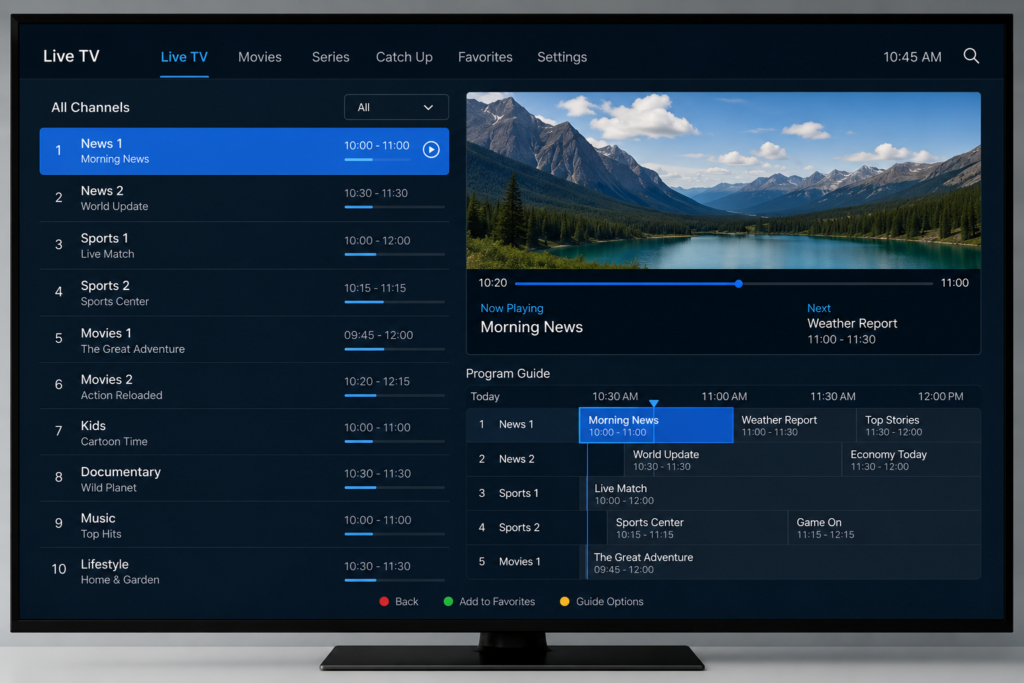
- Electronic Program Guide (EPG)
- Multi-language support
Because of its smooth performance, many Samsung TV owners choose IBO Player over other IPTV applications.
Why Use IBO Player on Samsung TV?
Samsung Smart TVs run on the Tizen operating system, which limits the number of IPTV applications available in the official app store.
IBO Player offers several advantages:
- Easy installation
- Stable performance
- Good compatibility with IPTV services
- Simple playlist management
- Professional interface
For users who want a straightforward IPTV experience, IBO Player is often one of the best choices.
How to Download IBO Player on Samsung TV
Follow these steps carefully:
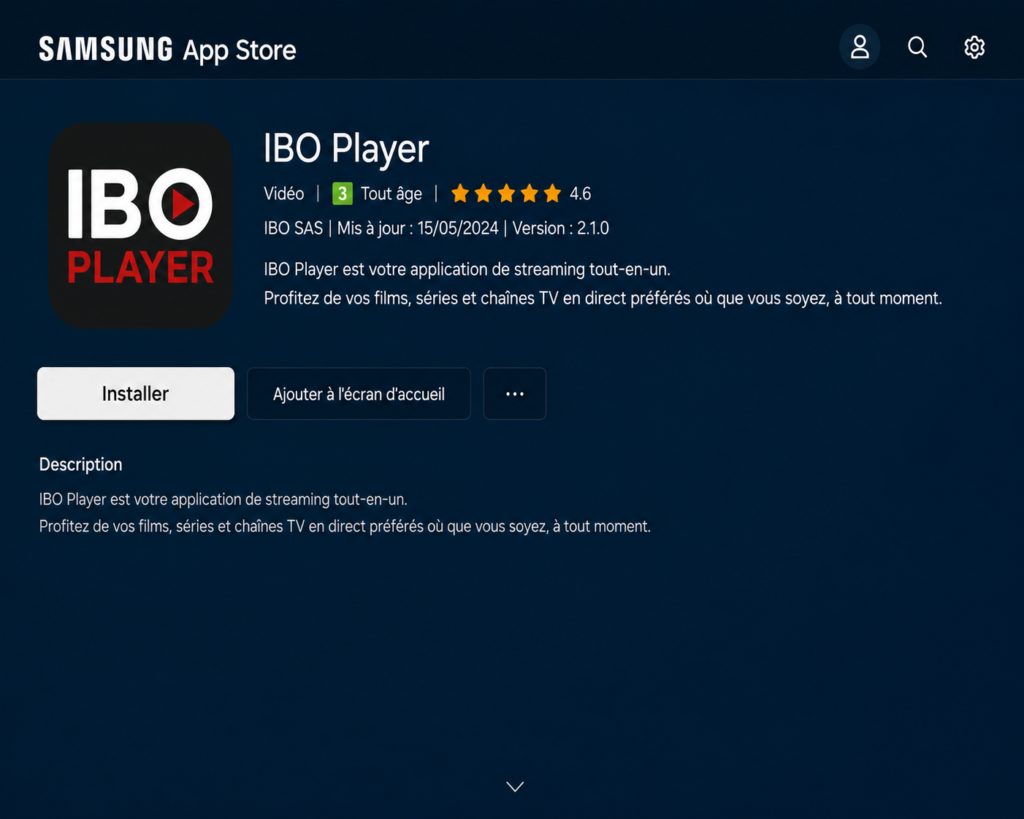
Step 1: Open the Samsung App Store
Turn on your Samsung Smart TV and open the Apps section from the home screen.
Step 2: Search for IBO Player
Using the search function, type:
IBO Player
When the application appears, select it.
Step 3: Install the Application
Click Install and wait for the download process to finish.
Once completed, launch the application.
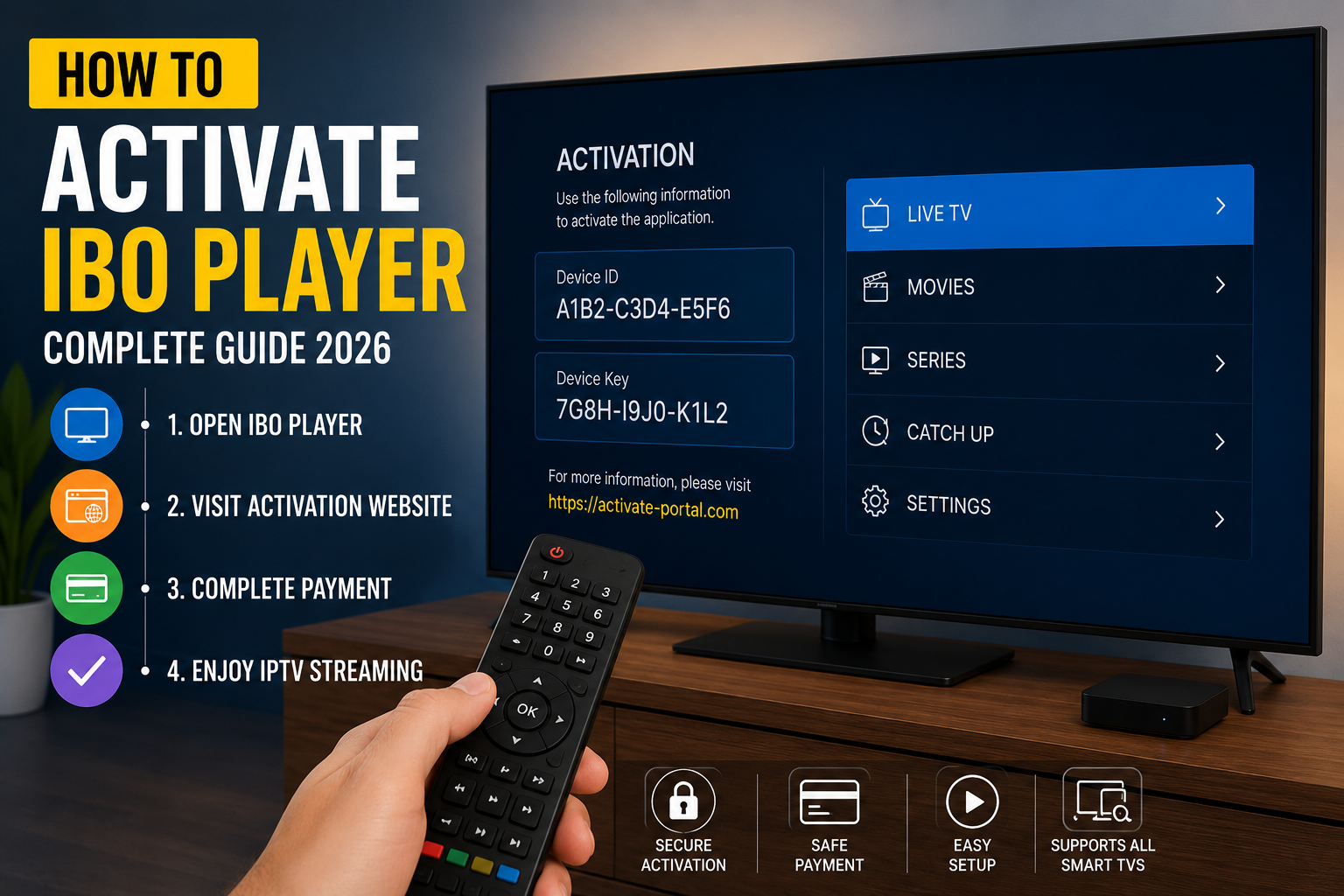
How to Activate IBO Player
After launching the app for the first time, you will see:
- Device ID
- Device Key
These credentials are required to activate the application and upload your IPTV playlist.
Visit the official IBO Player website:
Link : IBO PLAYER
Enter your Device ID and Device Key on the activation page.
Once connected, you can manage your IPTV configuration directly from the website.
How to Add an IPTV Playlist
After activation, you can upload your IPTV playlist.
Most IPTV providers support:
Option 1: M3U Playlist
Upload your M3U URL provided by your IPTV service.
Option 2: Xtream Codes API
Enter:
- Server URL
- Username
- Password
This method is generally easier because playlists update automatically.
After saving the information, restart the application on your Samsung TV.
Your channels should now appear.
Best Settings for Better Performance
To improve your viewing experience:
Enable Hardware Acceleration
This can improve playback quality and reduce buffering.
Update the App Regularly
New versions often include bug fixes and performance improvements.
Use a Stable Internet Connection
Recommended speeds:
- HD Streaming: 15 Mbps
- Full HD Streaming: 25 Mbps
- 4K Streaming: 50 Mbps+
A wired Ethernet connection usually performs better than Wi-Fi.
Common IBO Player Problems and Fixes
IBO Player Not Loading Channels
Possible causes:
- Incorrect playlist URL
- Expired IPTV subscription
- Server maintenance
Verify your IPTV credentials and reload the playlist.
Black Screen During Playback
Try:
- Restarting the TV
- Updating the application
- Checking your internet connection
Playlist Not Updating
Log into the IBO Player portal and refresh your playlist manually.
Is IBO Player Worth Using?
For Samsung Smart TV users, IBO Player remains one of the easiest IPTV players available.
Advantages:
- Easy setup
- Modern interface
- Excellent Smart TV compatibility
- Playlist flexibility
Disadvantages:
- Requires activation
- Does not include channels or content
Overall, it is a reliable choice for users who already have an IPTV subscription and want a smooth viewing experience.
Frequently Asked Questions
Is IBO Player free?
The application usually includes a trial period before requiring activation.
Can I use IBO Player without an IPTV subscription?
No. IBO Player is only a media player and does not provide channels.
Does IBO Player work on Samsung Smart TVs?
Yes. It is fully compatible with most recent Samsung Smart TV models.
Can I upload an M3U playlist?
Yes. M3U playlists and Xtream Codes are both supported.
Final Thoughts
Learning how to install IBO Player on Samsung TV is a straightforward process that takes only a few minutes. Once installed and activated, you can upload your IPTV playlist and enjoy a smooth streaming experience directly on your Smart TV.
If you are looking for additional IPTV tutorials, setup guides, and troubleshooting tips, explore more resources on IPTVHONEY.